
HP Color LaserJet toner replacement is easy once you know the steps. A cartridge change takes about five minutes, yet many offices in Dubai delay it and end up with faded colours or missed deadlines. This guide walks you through the process and the mistakes to avoid.
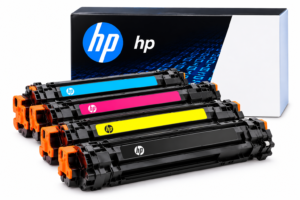
Table of contents
- Know when to replace
- Match the right cartridge
- Prepare your workspace
- Remove the old cartridge
- Install the new one
- Print a test page
- Recycle and reorder
Know When to Replace
Your printer shows a low-toner message before a cartridge is empty. Do not wait for the final warning. Signs include faded colours, streaks and a washed-out black. If prints look pale, check the toner level in the printer menu. Our guide to HP Color LaserJet toner codes explains the common models.Match the Right Cartridge
Colour printers use four cartridges: cyan, magenta, yellow and black. Each has its own code, such as the HP 222A or 230A families listed for different models. Read your printer model first, then pick the code printed on the box. Replace only the colour that is low, and keep spares of black, because it usually runs out first.Prepare Your Workspace
Put a sheet of paper under the printer to catch any loose toner. Wash your hands, since toner is a fine powder that stains. Keep the new cartridge sealed until you are ready.What you need
- The new cartridge, still in its bag
- A clean sheet of paper
- A dry, lint-free cloth
Remove the Old Cartridge
Switch the printer on, open the front or top cover, and wait for the carriage to stop. Pull out the cartridge that needs changing, holding it level so nothing spills. Never touch the shiny drum or the contacts.Install the New One
Remove the new cartridge from its bag and shake it gently from side to side to spread the toner. Take off the orange or plastic strip as the box instructs. Slide it into the same slot until it clicks, then close the cover. For a clear picture of the layout, see how a laser printer works.Print a Test Page
Print a colour test page from the printer menu. Check that all four colours look even, with no streaks or lines. If the colours seem off, run the printer’s calibration option and test again.Recycle and Reorder
Put the empty cartridge in the new cartridge’s box and send it to a recycling point. Then reorder your spare while you remember. AlphaCare IT can confirm the correct code for your printer before you buy. Browse more in our printer and toner guides or return to the homepage.Quick Checklist
- Cartridge code matches your printer model
- Workspace covered with paper
- Orange strip removed from the new cartridge
- Cover closed firmly
- Test page printed
- Spare cartridge reordered