
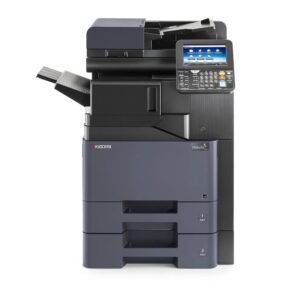
Photocopier speed is one of the first numbers you see on a brochure, usually written as PPM. It sounds simple, but many buyers choose a speed that is too slow for their team or pay for far more speed than they need.
This guide explains photocopier speed in plain words. You will learn what PPM means, how much you need and how to match a machine to your office.
Table of contents
- What photocopier speed means
- Tip 1: Understand pages per minute
- Tip 2: Know that A3 is slower than A4
- Tip 3: Count your real daily pages
- Tip 4: Think about peak hours
- Tip 5: Look beyond the number
- Tip 6: Match speed to a real model
- Speed guide by office type
- Common mistakes
- Quick checklist
- FAQs
What Photocopier Speed Means
Photocopier speed tells you how many pages a machine can print or copy in one minute. It is measured in pages per minute, or PPM.
A higher number means the machine finishes jobs faster. A faster machine usually costs more, so the goal is to choose enough speed for your team, not the highest number.
Tip 1: Understand Pages per Minute
Pages per minute is quoted for a certain paper size, most often A4. A machine rated at 25 PPM in A4 can print about 25 A4 pages each minute under ideal conditions.
Real jobs take a little longer, because of warm-up, duplex, colour and large files. Treat PPM as a guide, not a promise. You can read how these machines work in this overview of laser printing.
Tip 2: Know That A3 Is Slower Than A4
Speed ratings change with paper size. Larger sheets need more time, so A3 vs A4 speed shows a clear gap.
The HP LaserJet MFP M442dn is a good example. It prints 24 PPM in A4 and 13 PPM in A3. If you print many A3 pages, check the A3 speed, not only the A4 number. Our guide on choosing the right photocopier covers paper sizes too.
Tip 3: Count Your Real Daily Pages
Most offices guess their volume. Check the page counter on your machine for a typical month and divide by working days.
This simple number tells you whether a 25 PPM machine is enough or whether you need more. Matching photocopier speed to real volume avoids both queues and wasted money.
Tip 4: Think About Peak Hours
Average use hides busy moments. A school before exams or a clinic at opening time prints far more than at other hours.
Size for the busy hour. A good copier PPM for office use should keep your busiest period moving without long waits.
Tip 5: Look Beyond the Number
Photocopier speed is only one part of the picture. These points also affect how fast work gets done.
- Automatic duplex, which prints both sides in one pass.
- Scan to email, which saves walking to a computer.
- A clear touchscreen that staff can use quickly.
- Reliable support, so the machine is rarely out of action.
Our post on how regular photocopier maintenance improves office productivity shows how upkeep keeps speed steady.
Tip 6: Match Speed to a Real Model
Here are examples from the Alpha Care IT range, so you can see how photocopier speed differs.
| Model | Speed |
|---|---|
| Canon imageRUNNER ADVANCE C3525i | Up to 25 PPM in A4 |
| Canon imageRUNNER ADVANCE C5535i | Up to 35 PPM in A4 |
| Canon imageRUNNER ADVANCE C5240 | Up to 40 PPM in A4 |
| Kyocera TASKalfa 4053ci | Up to 40 PPM in A4 |
| HP LaserJet MFP M442dn | 24 PPM in A4, 13 PPM in A3 |
Speed Guide by Office Type
Use this as a rough starting point only. Your real needs depend on your pages and your busiest hours.
- Small office or reception desk: a lower speed such as about 25 PPM is often enough.
- Busy shared office or school staff room: consider about 35 PPM or more.
- Print room or very high volume: look at about 40 PPM or more.
A fast photocopier in Dubai is only useful if it also has support nearby. Alpha Care IT provides installation across the UAE, technical support, and toner and spare parts.
Common Mistakes
Buyers often make these errors with photocopier speed.
- Choosing the highest speed without checking real volume.
- Looking only at A4 speed when A3 is common.
- Forgetting that colour and duplex can slow jobs.
- Ignoring support and toner supply.
If cost is a worry, read our tips on how to reduce printing costs.
Quick Checklist for Photocopier Speed
- Check your monthly page count.
- Find your busiest hour.
- Check both A4 and A3 speed.
- Choose duplex and scan to email.
- Compare real models.
- Ask about installation and support.
For official guidance on doing business in the UAE, visit the UAE government portal.
FAQs
What is a good photocopier speed for a small office? About 25 PPM is often enough for a small team, but check your page counts first.
Does colour make photocopier speed slower? Some machines are slower in some modes. Check the specification for your model.
Can I rent a faster machine for a busy term? Yes. Alpha Care IT offers sale, purchase and rental.
How do I find my monthly page count? Most machines show a page counter on the screen or in a report.
Find the Right Photocopier Speed with Alpha Care IT
Tell us your monthly pages and busiest hours, and we will recommend a machine that fits.
- WhatsApp: +971 55 757 2423
- Website: www.alphacareit.com
- Email: info@alphacareit.com