Photocopier paper jam
problems always seem to happen at the worst moment, such as just before a meeting or a deadline. The good news is that most jams are simple to clear, and many can be prevented with a few good habits.This guide shares eight quick fixes for a photocopier paper jam, plus basic photocopier troubleshooting for streaks and faded copies. It also shows when it is time to call a technician.
Table of contents
- Why a photocopier paper jam happens
- Fix 1: Read the screen message
- Fix 2: Clear the paper path gently
- Fix 3: Check the paper tray
- Fix 4: Use the right paper
- Fix 5: Fan and refill the paper
- Fix 6: Keep the machine clean
- Fix 7: Fix streaks on copies
- Fix 8: Know when to call support
- Quick prevention checklist
- FAQs
Why a Photocopier Paper Jam Happens
Paper travels through rollers, belts and a heated unit inside the machine. If anything in that path goes wrong, a sheet can stop or crumple.The most common causes of a photocopier paper jam are damp or curled paper, the wrong paper type, an overfilled tray and worn rollers. You can read a simple overview of how these machines work in this guide to the
photocopier.
Fix 1: Read the Screen Message
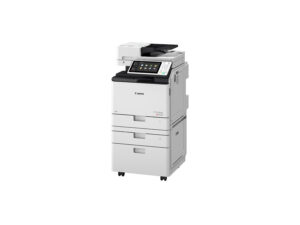
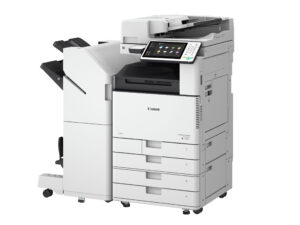
Modern machines such as the Canon imageRUNNER ADVANCE range tell you where the problem is. The touchscreen usually shows the area that needs attention.Follow the on-screen steps, because they guide you to the right cover or tray. Always read the safety notes in your user manual first.
Fix 2: Clear the Paper Path Gently
Open the indicated cover and remove the stuck sheet slowly. Pull in the direction of the paper path, and avoid tearing the sheet.If a piece tears off, check for small scraps, because a leftover scrap is the usual cause of the next photocopier paper jam. Do not touch hot parts or use sharp tools inside the machine.

Fix 3: Check the Paper Tray
A badly loaded tray is a top cause of jams. Make sure the paper sits flat and that the guides touch the stack lightly.
- Do not overfill the tray past the mark.
- Keep the guides snug but not tight.
- Load the paper the way the tray label shows.
Fix 4: Use the Right Paper
Paper that is too thin, too thick or damp may not feed well. Dubai summers can be humid, so store paper in a dry place and keep reams in their wrapping until use.Check your manual for the supported weights and sizes. Using the right paper often removes a repeated photocopier paper jam at no cost.
Fix 5: Fan and Refill the Paper
Sheets can stick together, which makes the machine pull two at once. Fan the stack before loading it, then tap the edges level.If paper is curled, flip the stack over. Small habits like this reduce each photocopier paper jam and save you waiting time.
Fix 6: Keep the Machine Clean
Dust and paper fibres build up on rollers and slow their grip. Heat and toner are also part of the process, as this overview of
laser printing explains. Switch the machine off and unplug it, then wipe the exposed areas with a dry, lint-free cloth, as your manual advises.Regular servicing also helps a lot. You can read more in our post on how
regular photocopier maintenance improves office productivity.
Fix 7: Fix Streaks on Copies
Sometimes the problem is not a jam but poor output.
Copier streaks on copies often come from a dirty scanner glass or a worn part.
- Wipe the glass with a soft, dry cloth.
- Run a test copy of a plain white sheet.
- If lines remain, check the toner and drum.
Low toner also causes faded, patchy pages. Our guide to
how to reduce printing costs explains how to manage supplies so you avoid surprises.
Fix 8: Know When to Call Support
Some problems need a technician, and it is safer to ask than to force a repair. Call for help if:
- Jams repeat in the same place.
- You hear grinding or see error codes that do not clear.
- Copies still show streaks after cleaning.
- A part looks worn or damaged.
Alpha Care IT provides
photocopier technical support, toner and spare parts, and installation across the UAE. If you need
photocopier repair in Dubai, send us a photo and the error code on WhatsApp, and we will advise on the next step.
Common Mistakes When Clearing a Photocopier Paper Jam
Even careful staff make a few common errors.
- Pulling the sheet hard or in the wrong direction.
- Leaving scraps inside the machine.
- Restarting before closing every cover.
- Ignoring repeated jams until the machine stops.
Share a short guide at the machine so every user clears a photocopier paper jam the same safe way. Training new staff takes five minutes and saves hours of lost time.
Quick Prevention Checklist
- Store paper dry and flat.
- Fan the stack before loading.
- Do not overfill the tray.
- Use the right paper weight.
- Clean the glass and exposed areas.
- Book regular servicing.
- Report repeat jams early.
FAQs
How do I clear a photocopier paper jam safely? Follow the on-screen steps, open only the indicated covers and pull the sheet gently along its path.
Why does my photocopier jam so often? Common causes are damp paper, an overfilled tray or worn rollers. Repeat jams need a technician.
Why are there streaks on my copies? A dirty scanner glass, low toner or a worn part usually causes them.
Does Alpha Care IT offer support in the UAE? Yes, we provide technical support, toner and spare parts, and installation.
Get Fast Help for a Photocopier Paper Jam
If a photocopier paper jam keeps stopping your team, tell us the model and the error message, and we will help you get back to work.

 Photocopier paper jam problems always seem to happen at the worst moment, such as just before a meeting or a deadline. The good news is that most jams are simple to clear, and many can be prevented with a few good habits.This guide shares eight quick fixes for a photocopier paper jam, plus basic photocopier troubleshooting for streaks and faded copies. It also shows when it is time to call a technician.